Add a Defender exclusion
Make a folder for Tavra and tell Windows Defender to leave it alone. One-time setup — it covers every future update too.
Steps
1
Make a folder called Tavra
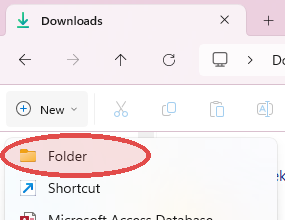
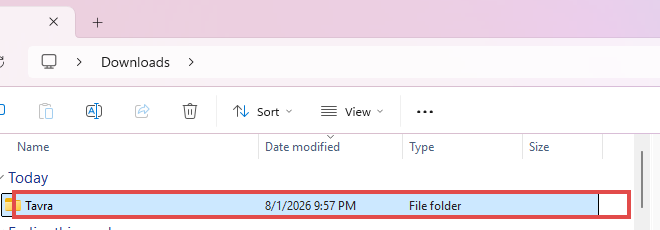
Open your Downloads folder. Click + New → Folder. Name it Tavra.
2
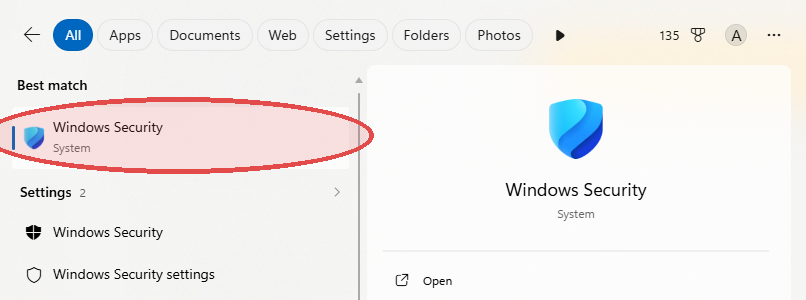
Open Windows Security
Hit the Windows key, type Windows Security, open the top result.
3
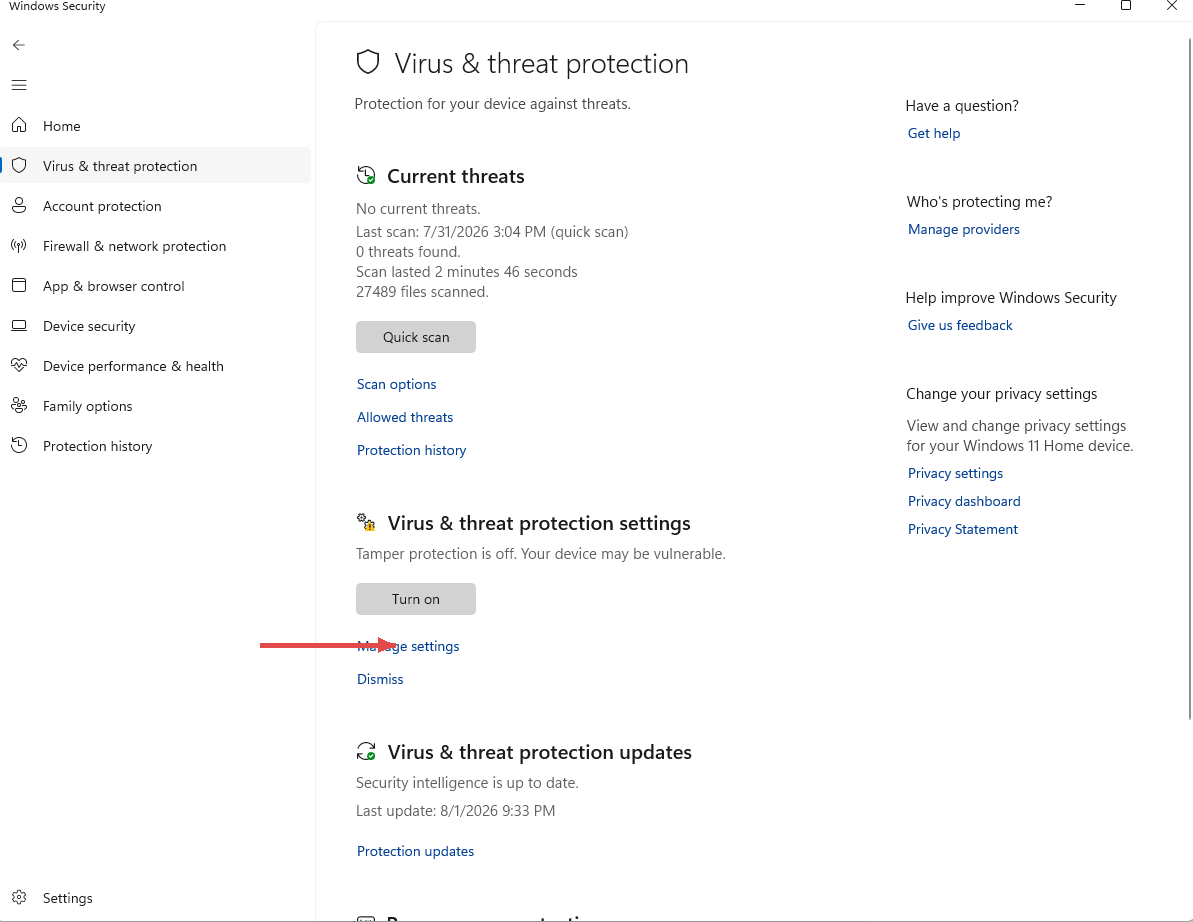
Virus & threat protection → Manage settings
Left rail: Virus & threat protection. Scroll down, click Manage settings.
4
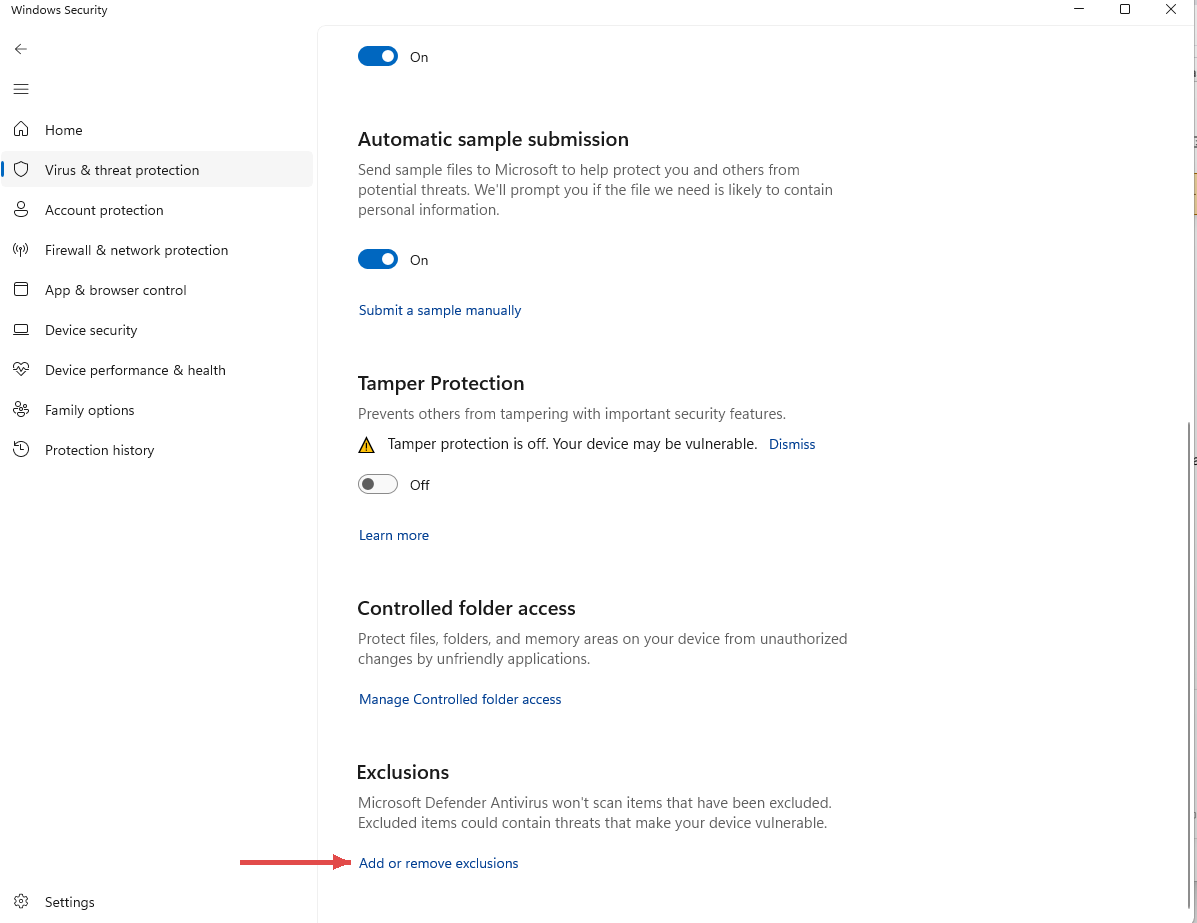
Scroll to Exclusions → Add or remove exclusions
At the bottom of the same page. Approve the admin prompt.
5
Add exclusion → Folder → pick your Tavra folder
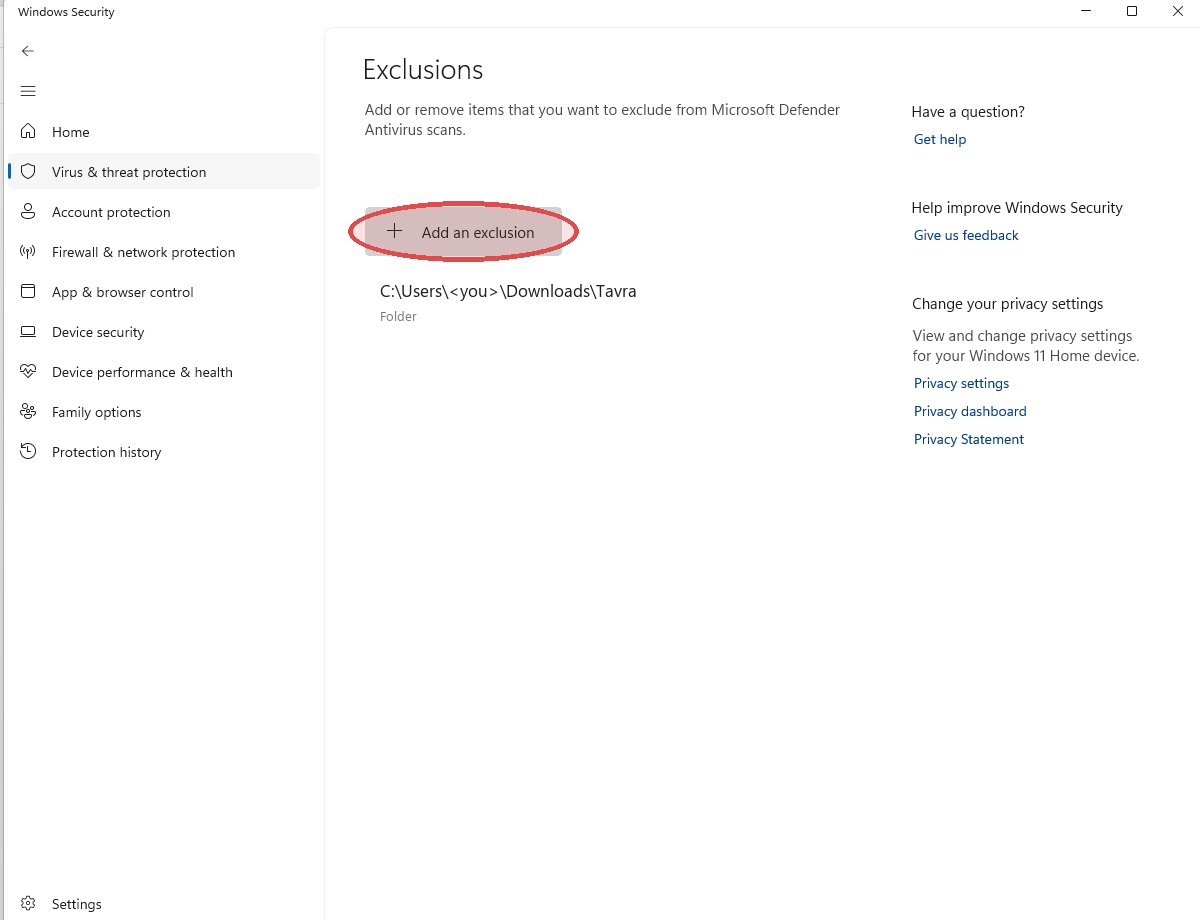
Click + Add an exclusion → Folder → navigate to Downloads → Tavra → Select Folder.
You're done when…
The exclusions list shows your Tavra folder. Anything you put in that folder from now on stays put.